
Browsing files
File-tree navigation, import via Add file dialog, extract, rename, delete from inside the vault.
The Browser is where you spend most of your time once a vault is open. It's a two-pane file manager: directory tree on the left, file list on the right, action buttons in the top toolbar.
Toolbar actions
| Button | Action | Keyboard |
|---|---|---|
| + Folder | Create a new directory at the current path | Ctrl+Shift+N |
| Up Import | Pick files via system dialog and copy into vault | Ctrl+I |
| Dn Extract | Save the selected file(s) to a destination on your real filesystem | Ctrl+E |
| Rename | Rename the selected file in place | F2 |
| Delete | Remove the selected file(s) from the vault | Del |
| Refresh | Re-read directory contents (after CLI activity from another process) | F5 |
| Lock + close | Discard the in-memory MVK, close the vault, return to Welcome | Ctrl+L |
Drag and drop
The Browser does NOT accept files dragged from your desktop. To copy files INTO an open vault you have two options:
- Click + Add file... in the toolbar to import via a file picker. This is the in-app path; it works without mounting and on every platform.
- Mount the vault as a volume (see below). Once it shows up as a real drive in Explorer / Finder / your file manager, standard drag-and-drop works against the mounted drive. This is the only path that supports drag-and-drop, because the OS filesystem layer is what handles the drop, not the LUKSbox GUI itself.
Mount as a real drive
The Browser toolbar (top-right of the vault view) has two mount buttons. The first, "Mount as volume...", opens a folder picker; pick an empty directory and LUKSbox mounts the vault there. The second is macOS + FUSE-T only.
"Eager flush (--sync)" checkbox
Next to the mount buttons is an Eager flush (--sync) checkbox. It controls the flush policy of the next mount session:
-
Unticked (default): deferred flush. Mutating ops (create, rename, delete, etc.) mark the in-memory tree dirty and return immediately; a background timer persists changes every 30 seconds. This is what makes basic file-manager operations (
rm, drag-and-drop a folder) fast on vaults with thousands of files. A host crash without explicitfsynccan lose up to 30 seconds of metadata changes. -
Ticked: eager flush. Every metadata mutation is flushed to disk before the operation returns, restoring pre-v0.2.2 per-op durability. Cost scales with total file count, so on large vaults this can make Finder / Explorer feel sluggish on every action. Tick only for small vaults or workflows where every change must be crash-durable on return.
The checkbox is per-mount session, not persisted: it resets to off after each mount, so eager flush is always an explicit opt-in. Mid-mount you cannot switch modes; unmount and re-tick to change.
The CLI equivalent is luksbox mount --sync and the wizard's
equivalent is the "Eager flush?" prompt before mounting (see the
mount reference
for the full trade-off). Default is off in all three surfaces.
"Mount privately" (macOS + FUSE-T)
The second button, labelled "Mount privately", appears only
on macOS builds that use the kext-free FUSE-T backend. Click it
and LUKSbox mounts the vault under
~/Library/LUKSbox/Mounts/<vault-name> instead of the usual
/Volumes/<vault-name>.
Why bother:
~/Libraryis mode0700by default, so the mountpoint path itself is invisible to other user accounts on this Mac. Useful on shared family / household machines.- The default
/Volumes/<name>is in a world-readable directory. File contents are still protected by mode0700on the FUSE root, but the name leaks.
What you give up:
- The mount will NOT show up in Finder's Locations sidebar (which
only watches
/Volumes). - Hand-typing the path is annoying because
~/Libraryis hidden in Finder by default. Use the "Open mountpoint" button on the post-mount status view instead, orFinder > Go > Go to Folder.
For single-user Macs the default /Volumes mount is usually
better, there is nobody else to hide from, and Finder integration
is smoother.
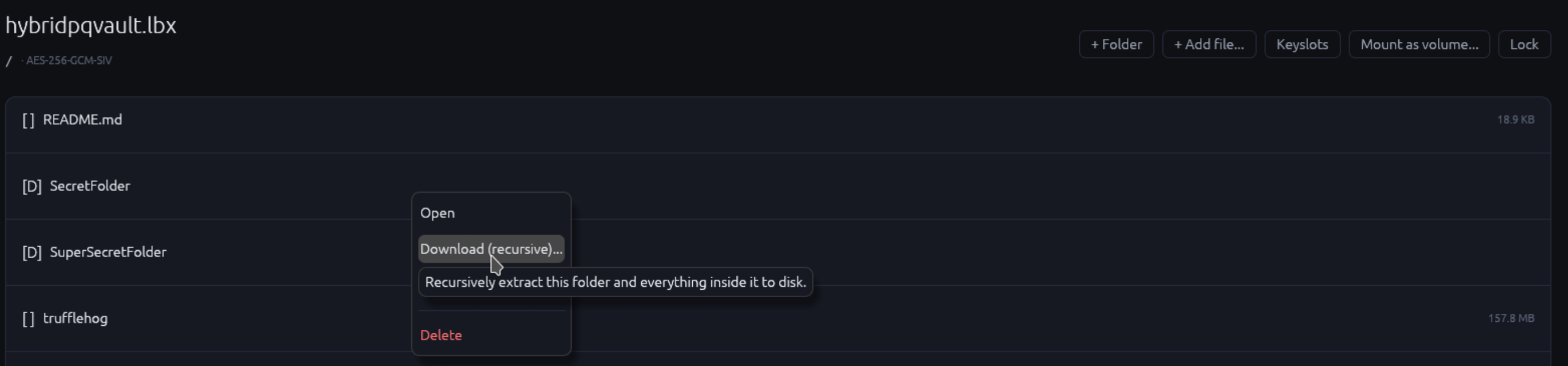
Context menu
Right-click a file or folder for quick actions:
| Item | What it does |
|---|---|
| Download... | Save to a path you pick |
| Rename | In-place rename |
| Delete | Remove (no recycle-bin recovery) |