
Creating a vault
The Create form: keyslot kind, cipher, KDF, FIDO2 enrollment from the GUI.
The Create view collects everything needed to build a fresh vault in one form. The defaults match what most users want (passphrase keyslot, AES-256-GCM-SIV, interactive KDF), so for a basic vault you only need to fill in the path + a passphrase.

The form
Vault path
Click the file-picker icon next to the path field, or type a path directly. The GUI:
- Refuses to overwrite an existing file (you'll see a red error banner if the path exists)
- Refuses paths inside a mounted vault (would create a vault inside another vault - rejected)
- Auto-appends
.lbxif you forgot the extension
If you want a detached header (small .hdr file separate from
the .lbx), expand the "Advanced options" section and tick
"Detached header" - a second file picker appears for the .hdr
location.
Keyslot kind
Dropdown with six options:
| Kind | What it is | When to pick |
|---|---|---|
| Passphrase | Argon2id-stretched passphrase wraps a random MVK | Default; most users |
| FIDO2 (wrap) | YubiKey / Titan / Hello unlocks; passphrase backup | Hardware-key users |
| FIDO2 (direct) | YubiKey is the ONLY way; lose key = lose vault | High-paranoia / no recovery wanted |
| Hybrid PQ + passphrase | ML-KEM-768 + Argon2id; needs .kyber seed file |
Long-term archival |
| Hybrid PQ + FIDO2 | ML-KEM-768 + YubiKey; needs .kyber seed file |
Hardware key + post-quantum |
| Hybrid PQ-1024 (FIDO2 or passphrase) | ML-KEM-1024 stronger variants | NIST Cat-5, ~AES-256 PQ strength |
Picking a hybrid kind reveals a "Kyber seed file" picker (where to
save the .kyber seed - keep on separate trusted storage).
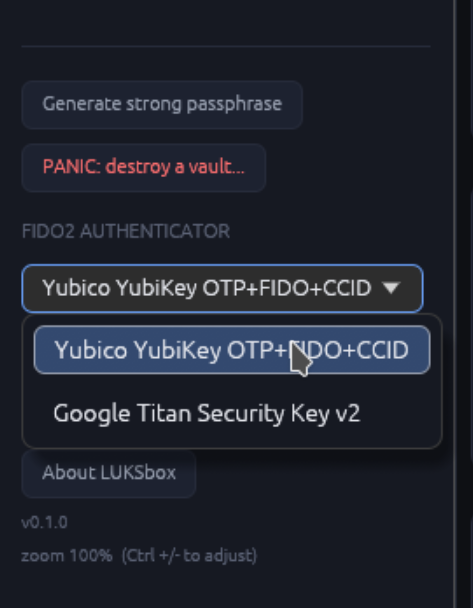
Picking a FIDO2 kind reveals a "FIDO2 device" dropdown showing every CTAP2 authenticator currently plugged in (refreshes when you click the refresh button next to it).
Cipher suite
Three options, AES-256-GCM-SIV is the default:
| Cipher | When to pick |
|---|---|
| AES-256-GCM-SIV (default) | Default; nonce-misuse-resistant; AES-NI on most CPUs |
| AES-256-GCM | Legacy compat with vaults created before SIV was the default |
| ChaCha20-Poly1305 | If your CPU has no AES-NI; constant-time on every platform |
Most users keep the default. If LUKSbox detected your CPU has no AES-NI at startup, the GUI shows a tooltip recommending ChaCha.
KDF preset
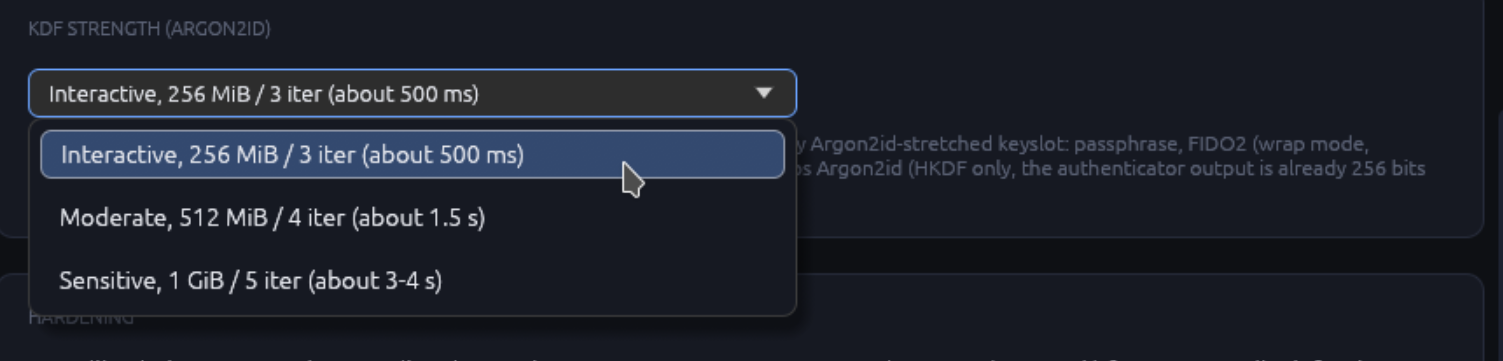
Three options for Argon2id strength:
| Preset | Memory | Time / unlock | Brute-force resistance |
|---|---|---|---|
| Interactive (default) | 256 MiB | 500 ms | Strong; daily-use vaults |
| Moderate | 512 MiB | 1.5 sec | Annual-archive vaults |
| Sensitive | 1 GiB | 3-4 sec | Long-term cold storage |
Click "Benchmark on this CPU" to run the same wall-time
measurement that luksbox kdf-bench does (CLI Round 9G); the GUI
shows you exactly how long each preset takes on YOUR hardware.
Passphrase
The passphrase field has:
- Live strength meter (powered by
zxcvbn) showing estimated bits- "weak / fair / strong" label
- Show/hide eyeball toggle
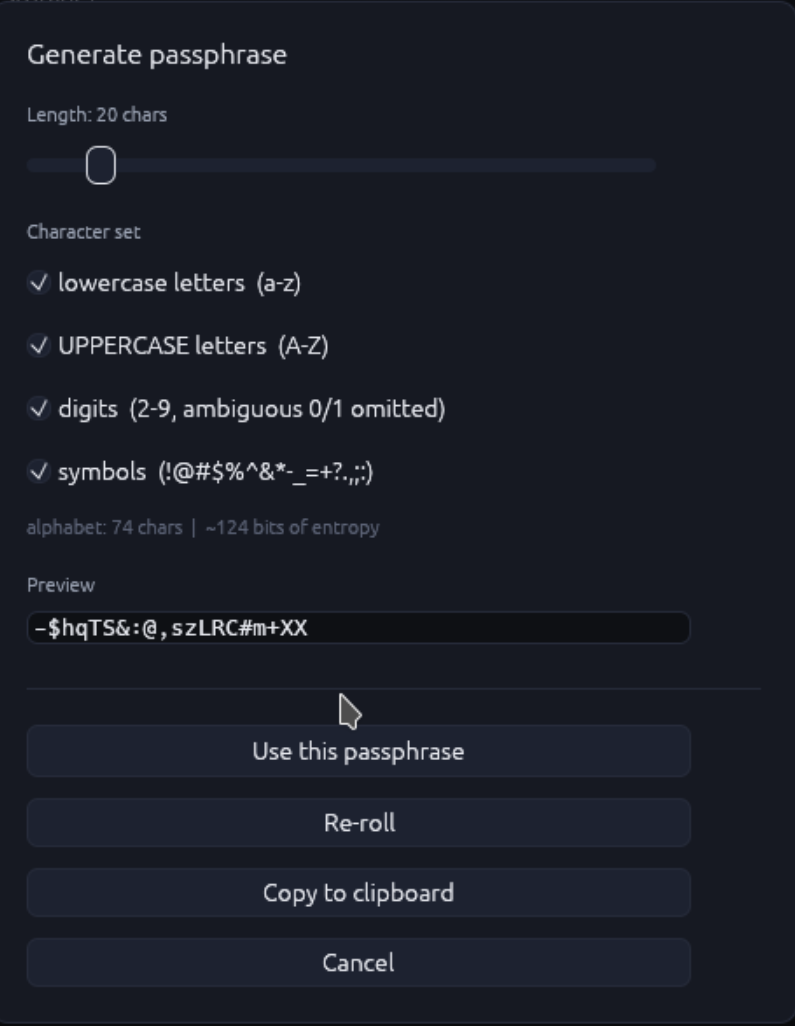
- A Generate button that opens a passphrase-generator dialog (length, charset, exclude-ambiguous-chars; copies result back into the field on Accept)
For FIDO2 keyslot kinds, you'll also see a Backup passphrase field below the FIDO2 picker - this becomes a second keyslot in the same vault so losing the YubiKey doesn't mean losing the vault.
Advanced options
Click "Advanced options" to expand:
- Detached header: write the 8 KiB header to a separate
.hdrfile (vault file is then opaque random-looking data alone) - Anchor sidecar: rollback-detection metadata file location
- Pad files: round each file's chunk count up to the next power of 2 (hides exact size from disk forensics)
- Hide sizes: move size field into AEAD-encrypted chunks (implies pad-files)
- Custom KDF target time: equivalent to
--kdf-target-time 5secfrom the CLI; type a duration and the GUI calibrates m_cost on the fly - On-disk format (v2 / v0.2.1): a separate collapsible panel
labelled "On-disk format (advanced)". A single checkbox toggles
between the v0.2.1 format (the default -- LBM5 + LUKSBOX2
header + sidecar mirrors for crash-safety; 64 MiB metadata cap;
lower spill threshold; requires LUKSbox v0.2.1+ to open) and v2
(legacy -- inline chunk lists, no sidecar mirrors, ~10 GiB
practical per-vault ceiling, NOT crash-safe, readable by every
LUKSbox release ever shipped). Untick the v0.2.1 box only if
you need to share the new vault with a colleague on a pre-v0.3
LUKSbox install AND you can suppress the auto-upgrade trigger
via
LUKSBOX_FORMAT_V2=1in their environment; otherwise the first flush on their side will upgrade the vault and lock them out of older binaries. The choice is permanent for the vault. See the CLI create page for the full comparison.
Deniable mode
Tick the Deniable checkbox at the top of the Create form to
build a deniable vault instead of a
standard one. Every byte of the resulting 36 KiB header is
indistinguishable from random output: there is no LUKSbox magic,
no version field, no parseable structure for file(1) / libmagic
/ yara to latch onto.
When Deniable is ticked the Create form changes in three ways:
- The FIDO2 (direct) radio disappears from the keyslot kind picker. Every deniable variant carries a passphrase (the envelope-opening factor) by design, so pure-FIDO2 deniable vaults are not possible. The variants that remain are Passphrase, Passphrase + FIDO2, Passphrase + TPM, Passphrase + TPM + FIDO2, and the four hybrid-PQ counterparts.
- The cipher dropdown and Argon2id sliders stay visible, but the GUI shows a warning that forgetting the cipher choice or the Argon2id parameters bricks the vault. In deniable mode these values are part of the secret, not stored in the header.
- For hybrid-PQ variants, the optional seed-file passphrase
field shows the hint "Leave BLANK to reuse the envelope
passphrase". One passphrase then opens both the slot envelope
and the
.kyberseed file. Fill it to set a distinct seed-file passphrase (defence in depth; both must be typed at every unlock).
See the full deniable mode reference for the eight supported variants and trade-offs vs the standard format.

Creating
Click Create vault at the bottom. Two things happen:
- A "Working..." overlay appears; Argon2id KDF runs (takes 0.5 - 4 sec depending on your preset)
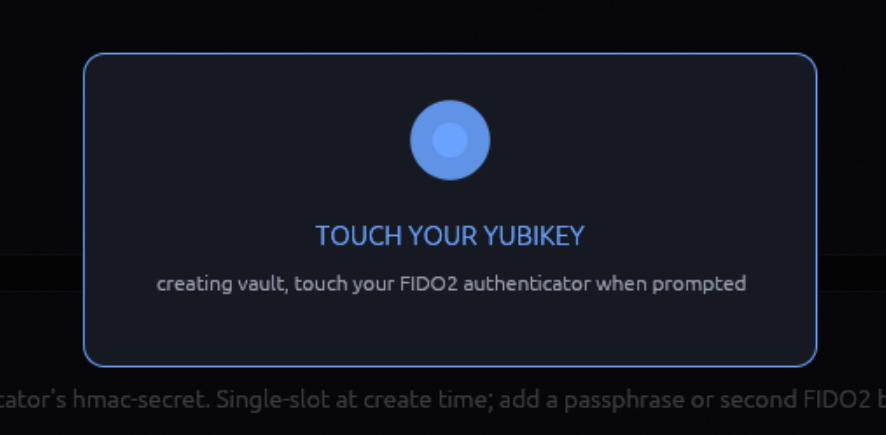
- For FIDO2 keyslots: the GUI prompts for a touch on your hardware key (twice: once for makeCredential, once for getAssertion)
On success, you're auto-navigated to the Browser view with the new (empty) vault open. You can now import files (via the + Add file... toolbar button or by mounting the vault as a drive and using your file manager) or manage keyslots.
Errors you might see
| Error | What it means | Fix |
|---|---|---|
| "Path already exists" | The chosen .lbx path is taken |
Pick a different name or delete the old vault |
| "Weak passphrase" | zxcvbn estimates < 60 bits | Add words / use the Generate button |
| "FIDO2 device not found" | No device plugged in or libfido2 can't see it | Plug in / check udev rules on Linux (install guide) |
| "Touch timeout" | You took > 30 sec to touch | Re-click Create vault to retry |
| ".kyber path required" | Hybrid-PQ kind selected but no Kyber seed file path given | Click the file-picker next to "Kyber seed file" |