
Welcome screen
The landing view: create a vault, open one, or pick from recent vaults.
The Welcome view is what you see when you launch luksbox-gui
without a file argument. Three columns: a brand sidebar on the
left, the main action panel in the middle, and a "Recent vaults"
list on the right that fills as you use the app.
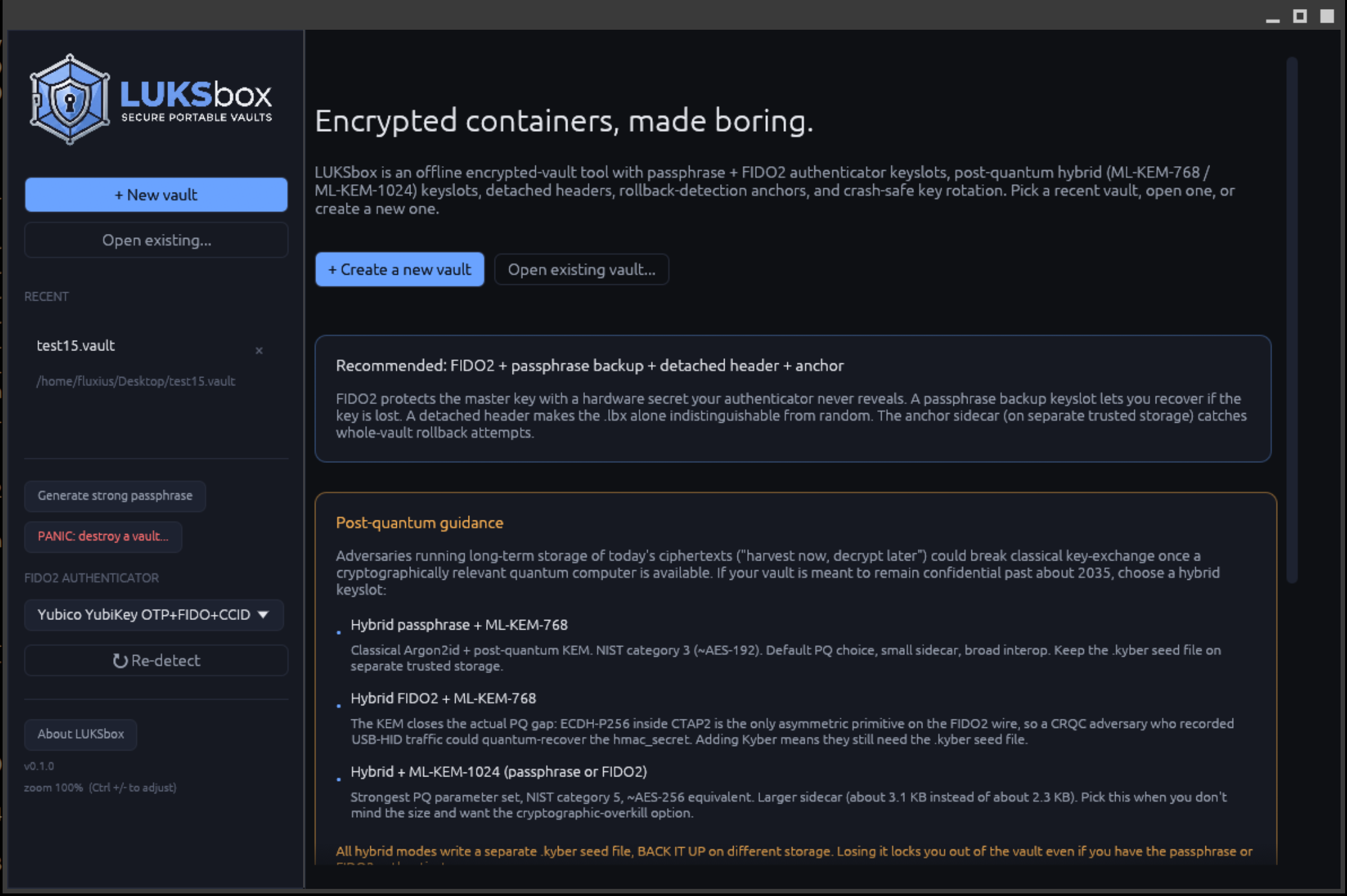
.lbx file; the recent-vaults list keeps your last 10 used paths.The three actions
Create new vault
Click Create new vault to start a fresh container. Takes you to the Create form where you pick:
- The vault file path
- The keyslot kind (passphrase, FIDO2, hybrid-PQ, etc.)
- The cipher (AES-256-GCM-SIV by default)
- The KDF preset (interactive / sensitive)
Open existing vault
Click Open existing vault to pick a .lbx file via the system
file dialog. Takes you to the Unlock view which adapts
to the keyslots present in the chosen file (passphrase prompt for a
passphrase-only vault, "touch your key" prompt for FIDO2, both for
hybrid).
About
Opens a panel showing the LUKSbox version, the underlying crate versions, the link to the source repository, and the licence (Apache License 2.0).
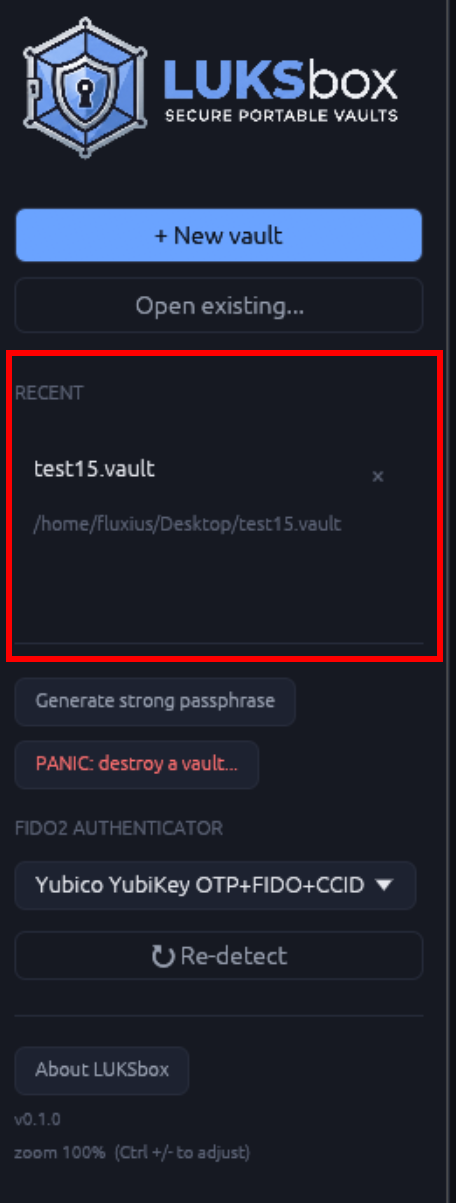
Recent vaults list
Up to 10 most-recently-opened vaults, persisted to your user-config directory:
- Linux:
~/.config/luksbox-gui/recent.json - macOS:
~/Library/Application Support/luksbox-gui/recent.json - Windows:
%APPDATA%\luksbox-gui\recent.json
Click any entry to jump straight to the Unlock view for that vault. The list updates whenever you successfully open or create a vault.
To clear the list: delete the recent.json file. (No in-app
"clear recents" button yet; it's a one-line file removal.)
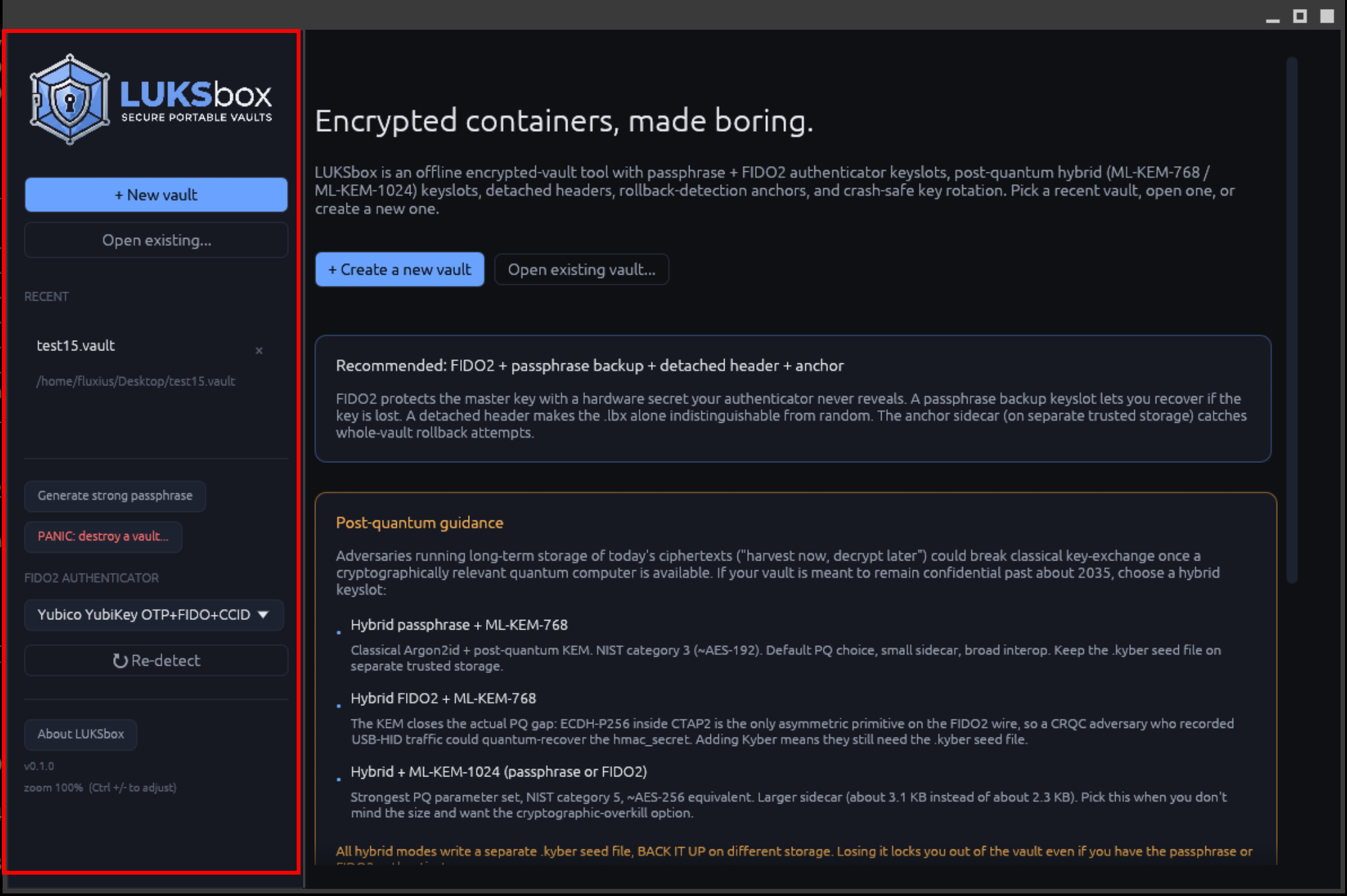
Sidebar
The left sidebar is the same on every view (Welcome, Create, Unlock, Browser, Keyslots). It contains:
- The LUKSbox logo + version number
- Navigation back to Welcome (when a vault isn't open)
- Theme toggle (dark / light)
- Settings (advanced; see below)
Keyboard shortcuts
| Key | Action |
|---|---|
Ctrl+N |
Create new vault (Welcome -> Create) |
Ctrl+O |
Open existing vault (Welcome -> Unlock) |
Ctrl+Q |
Quit the application |
Esc |
Cancel current dialog / go back |
Same shortcuts work on macOS with Cmd instead of Ctrl.